


Polish Text
Use AI to fix, shorten, or expand your text in the rich text editor, and preview before you replace.


Polish Text is an AI helper in rich text editors. It improves your writing, fixes grammar and spelling, or summarizes a long note. You can review the result before it replaces your text.
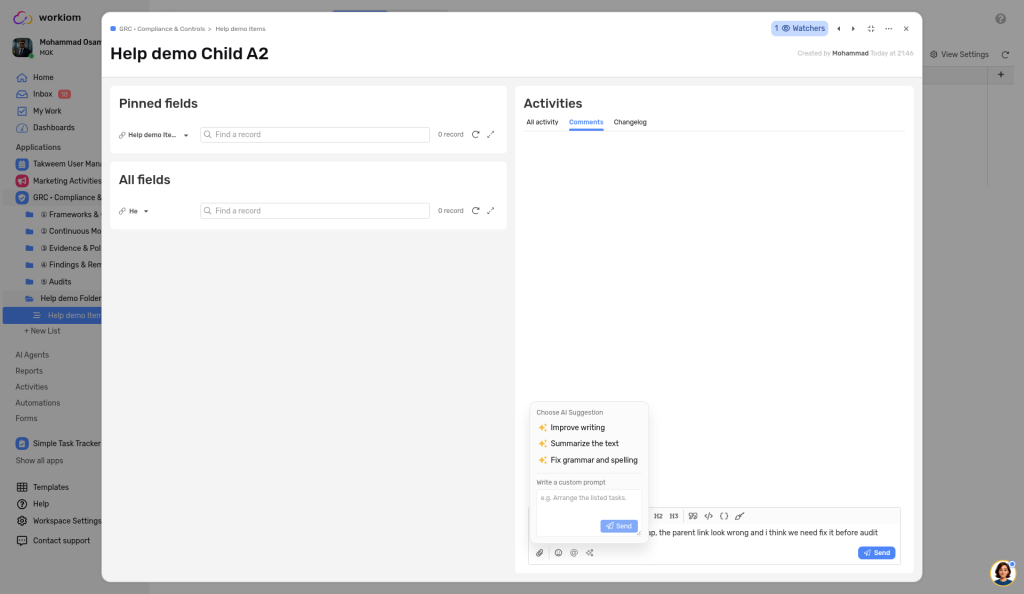
Note: Polish Text appears as a sparkle icon in rich text editors, such as the comment box on a record and multiline text fields in a record. In a multiline text field, select the text first. With nothing selected, Workiom shows the message Please select text to polish.
How to Polish Text
1. Select your text
Write or paste your text in the comment box or in a multiline text field, then select the part you want to improve.
2. Open Polish Text
Select the sparkle icon in the editor's toolbar. Point to it to see Polish Text and its keyboard shortcut, Ctrl + Alt + Shift + P.


3. Choose a suggestion
The Choose AI Suggestion menu offers three presets:
- Improve writing
- Summarize the text
- Fix grammar and spelling
Or write your own under Write a custom prompt — for example, Arrange the listed tasks — and select Send.
4. Review the result
The AI Polish window opens with your prompt and the AI Suggested text. Not quite right? Change the prompt and select Generate again. Select Copy to copy the suggestion. You can't edit the suggested text directly — only the prompt.

5. Apply it
- Replace: swaps the suggestion in for your selected text
- Cancel: closes the window and leaves your text unchanged
Format Code
Clean up a JSON snippet without putting it in a code block first. The Format Code button does it in one click.
How to Format a Snippet
- Paste your JSON into a Multiline text field editor, or into a comment in the Comment section.
- Select the snippet.
- In the editor toolbar, select Format Code, next to Code. Point to it to see its keyboard shortcut, Ctrl + Alt + Shift + F.
The selected text is reformatted into a clean layout that is easier to read and maintain.
Things to Know
- Where it appears: the text editor toolbar on Multiline text fields and in the Comment section.
Example: A teammate pastes a one-line order payload for PO-2026-0142 into a comment. Select it and use Format Code, and everyone reads it in a clean layout.
💡 Tip: Use the shortcut Ctrl + Alt + Shift + F when you format snippets often.
Use Case
- Business use case: A support agent selects a draft note, chooses Improve writing, reads the suggestion, and selects Replace.
- Simple use case: You select a long note and choose Summarize the text to get a shorter version.
💡 Tip: Write a custom prompt — for example, Arrange the listed tasks — then check the suggestion before you replace.
Need help? Reach out to our support team or check out the full guide for Workiom AI.