


Signature
Capture typed or drawn signatures directly in lists and forms as image-based records.


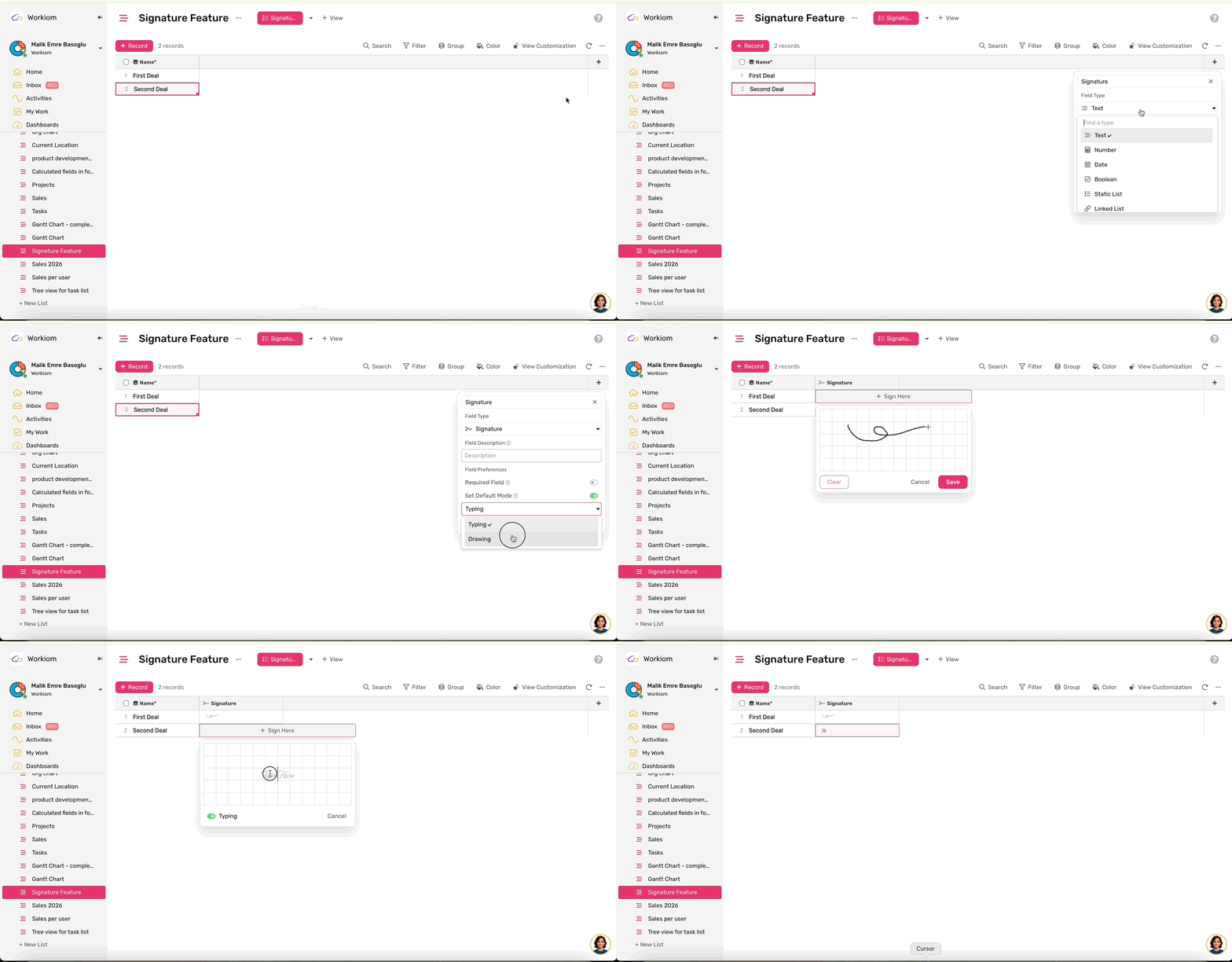
The Signature field lets you capture signatures directly inside lists and forms — by typing or drawing. Use it for contracts, approvals, consent forms, or any document that requires a signed acknowledgment. Signatures are stored as image files and display as thumbnails across all views.
Adding a Signature Field
- Open any list and click Fields
- Click + Create New Field
- Type a field name
- From the Field Type dropdown, select Signature
- Choose the default input mode — Type or Draw
- Optionally mark the field as required
- Save the field
Capturing a Signature
Click on any empty signature cell — in a list, record page, or form — to open the signature modal.
- Type mode — type your name and it converts to a handwriting-style font
- Draw mode — draw your signature freehand using your mouse or trackpad
- You can switch between modes using the toggle inside the modal
- Once done, click Save to commit the signature to the field. Then save the record to persist it.
Replacing or Clearing a Signature
Click on a filled signature cell to open the preview modal. From there:
- Click Clear to remove the existing signature and switch to capture mode
- Create a new signature and click Save
- Click Cancel at any point to close the modal without changes
Using Signatures in Forms
The Signature field works the same way in both internal and external forms. Form submitters can type or draw their signature before submitting. If the field is marked as required, the form cannot be submitted without a signature.
Filtering and Sorting
- Filter by Is Empty or Is Not Empty to find records with or without signatures
- Sort by filled vs. empty signature status in Table view
- Use Is Empty / Is Not Empty conditions in color rules
Export and Reports
- Signatures are included in CSV and Excel exports as image files
- PDF exports show signatures as images at actual size
- Use Summary reports to count records with and without signatures
Automations
- Map a signature to a field in Create Record or Update Record actions
- Use Is Empty / Is Not Empty as conditions in automation triggers