


Default Sort for Shared Views
Save one sort order on a shared Table or Tree view so your whole team opens it the same way.


Save one sort order on a shared Table or Tree view so everyone who opens it sees records in the same order. You set it once, and the whole team lands on that order.
Note: Default sort works on team and workspace views in Table View and Tree View. Only app owners, workspace owners, and workspace super admins can save it.
How to Set Up Default Sort for Shared Views
1. Open a Shared View
Open a team or workspace Table or Tree view.
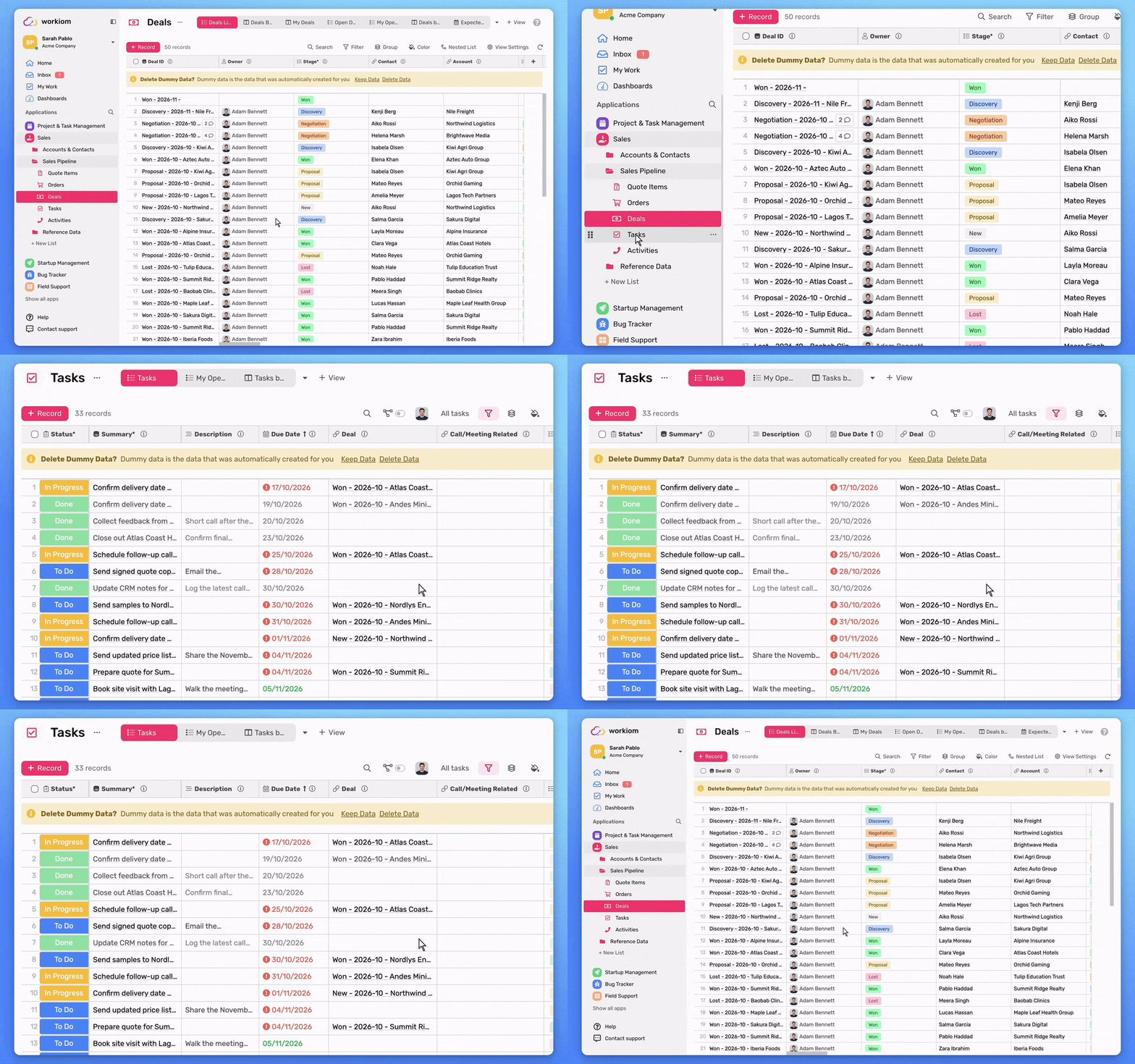
2. Sort the View
Select a column header and apply the order you want everyone to see, for example by Due Date or Priority.
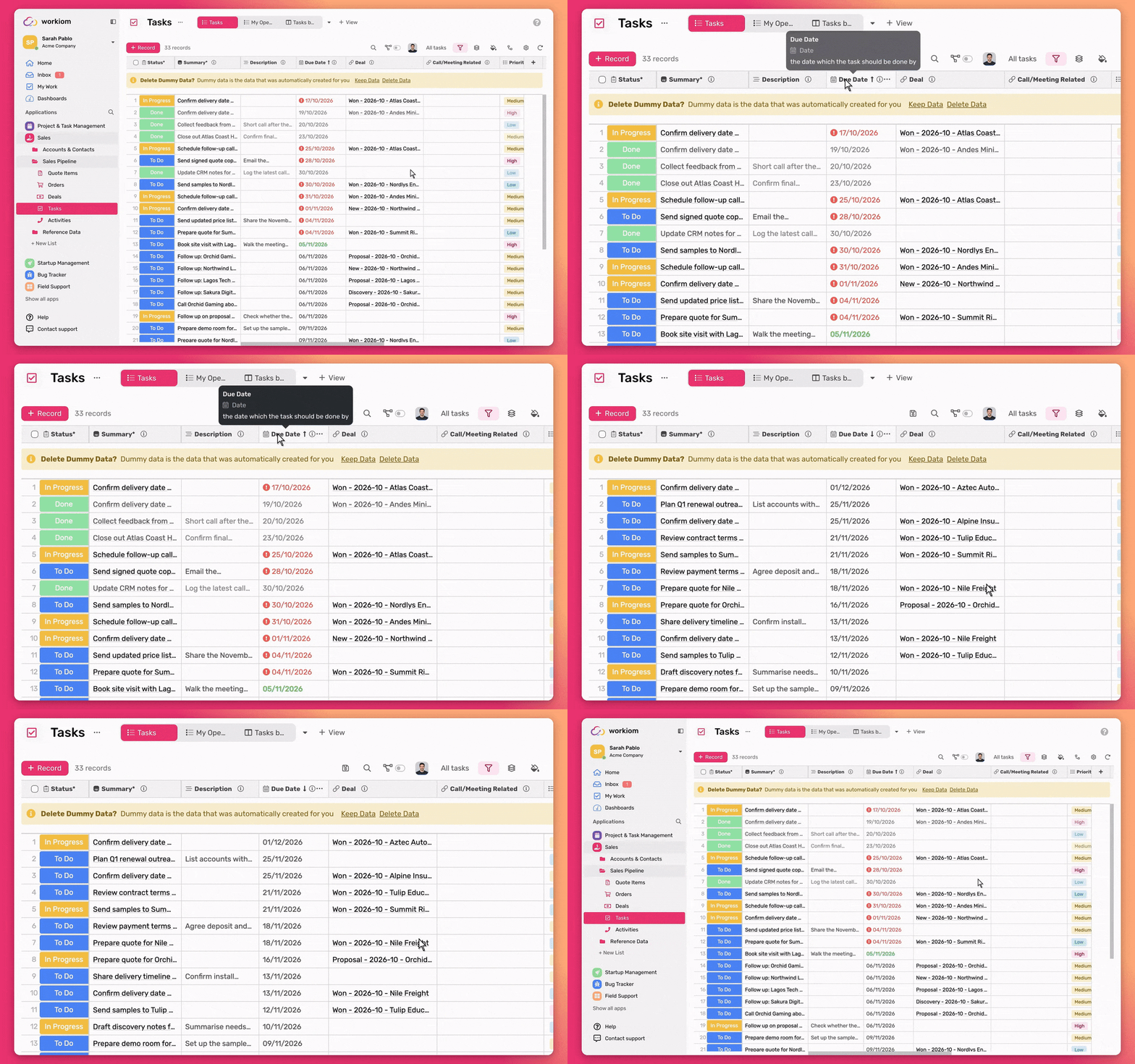
3. Save the Sort as Default
Select Save as Default Sort in the toolbar. That sort now loads for everyone who opens the view.
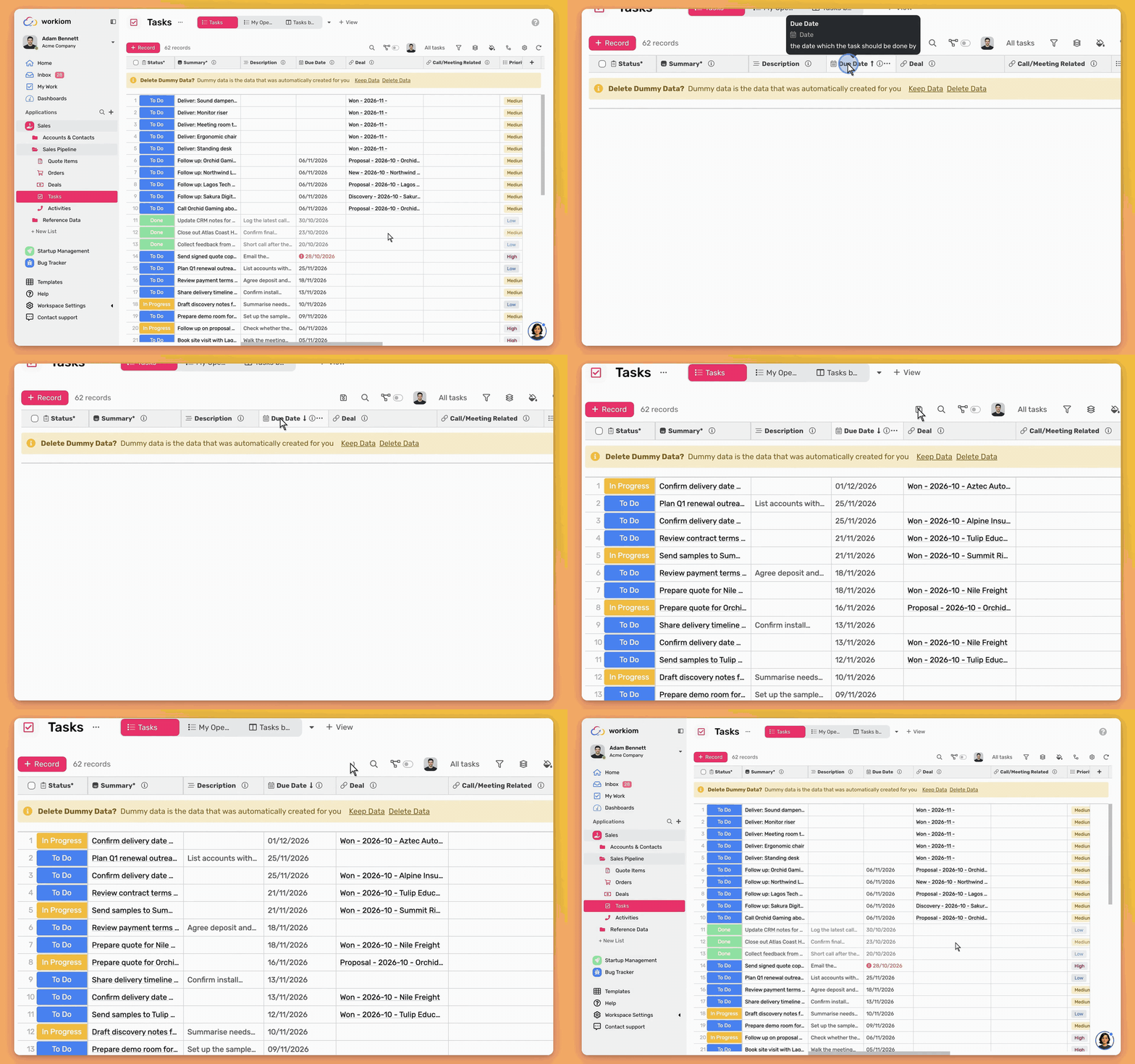
How Sorting Works for Your Team
- Same order for everyone: Anyone who opens the view sees the default sort.
- Temporary re-sort: Content editors and view-only users can still sort differently while they work. When they refresh, the view returns to the default.
- New records in place: New records appear in the right sorted position, in real time, for everyone on the view.
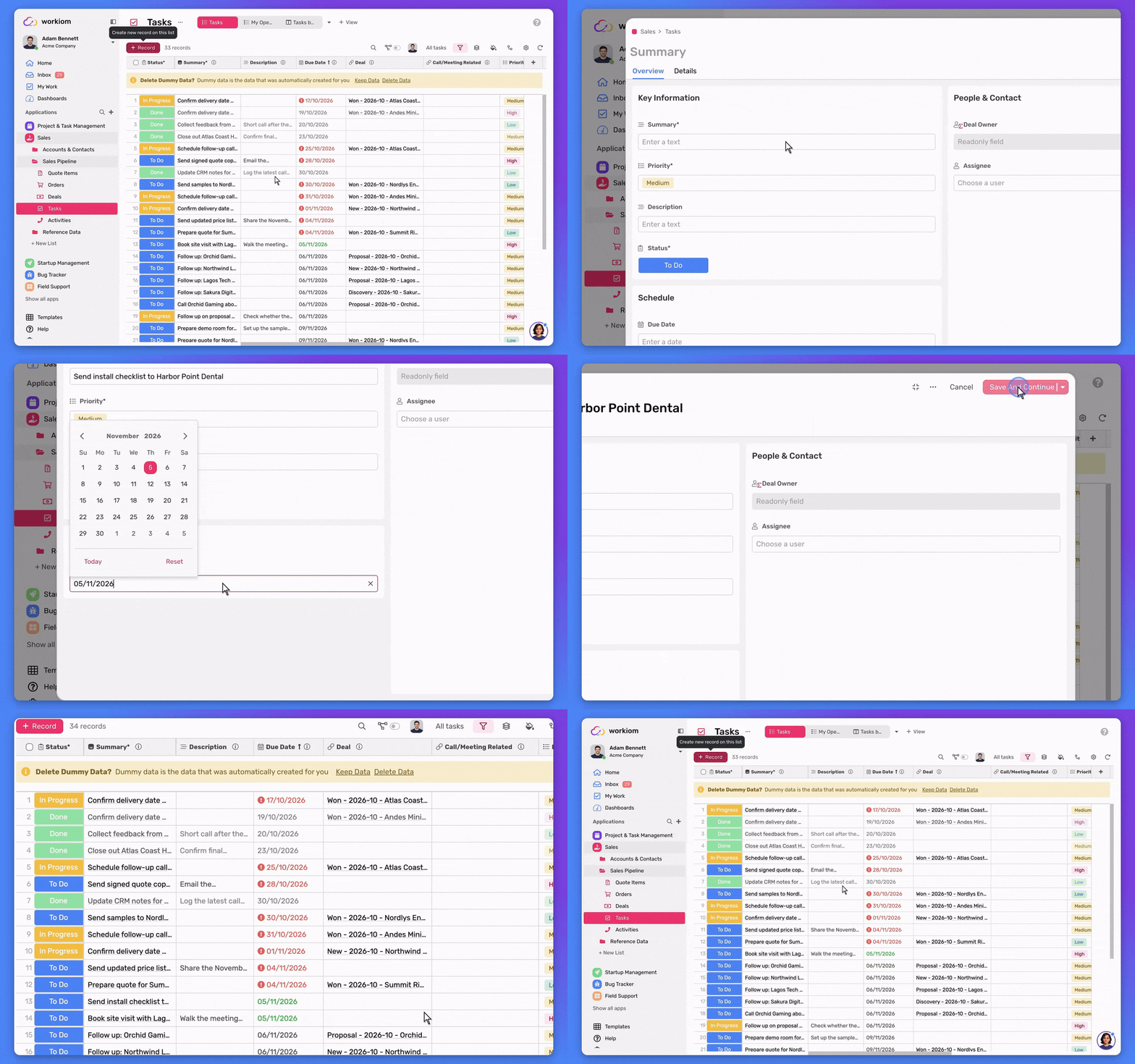
Things to Know
- Where it applies: team and workspace views in Table View and Tree View.
- Who can save: app owners, workspace owners, and workspace super admins.
- Everyone else: can re-sort while they work, and the default returns when they refresh.
Use Case
- Business use case: The project office at Brightlane Group saves a Priority sort on a workspace Tree view. Every team member opens the same order, and new initiatives drop into the right spot without anyone sorting again.
- Simple use case: You save a Due Date sort on a team Table view. A teammate sorts by name for a moment, then refreshes and is back to due date order.
💡 Tip: Agree on the sort with your team before you save it, so the default matches how everyone reads the view.
Need help? Reach out to our support team or check out the full guide for using other views.