


Gallery View
Display records as visual cards with image thumbnails and key details for easy browsing and comparison.


The Gallery View helps you browse records visually with image thumbnails and customizable field previews. Perfect for managing product catalogs or real estate listings, Gallery View displays your data as interactive cards that make it easy to scan and organize information at a glance.
Note: Gallery View is available for both Data Lists and Task Lists.
How to Set Up a Gallery View
Create the Gallery View
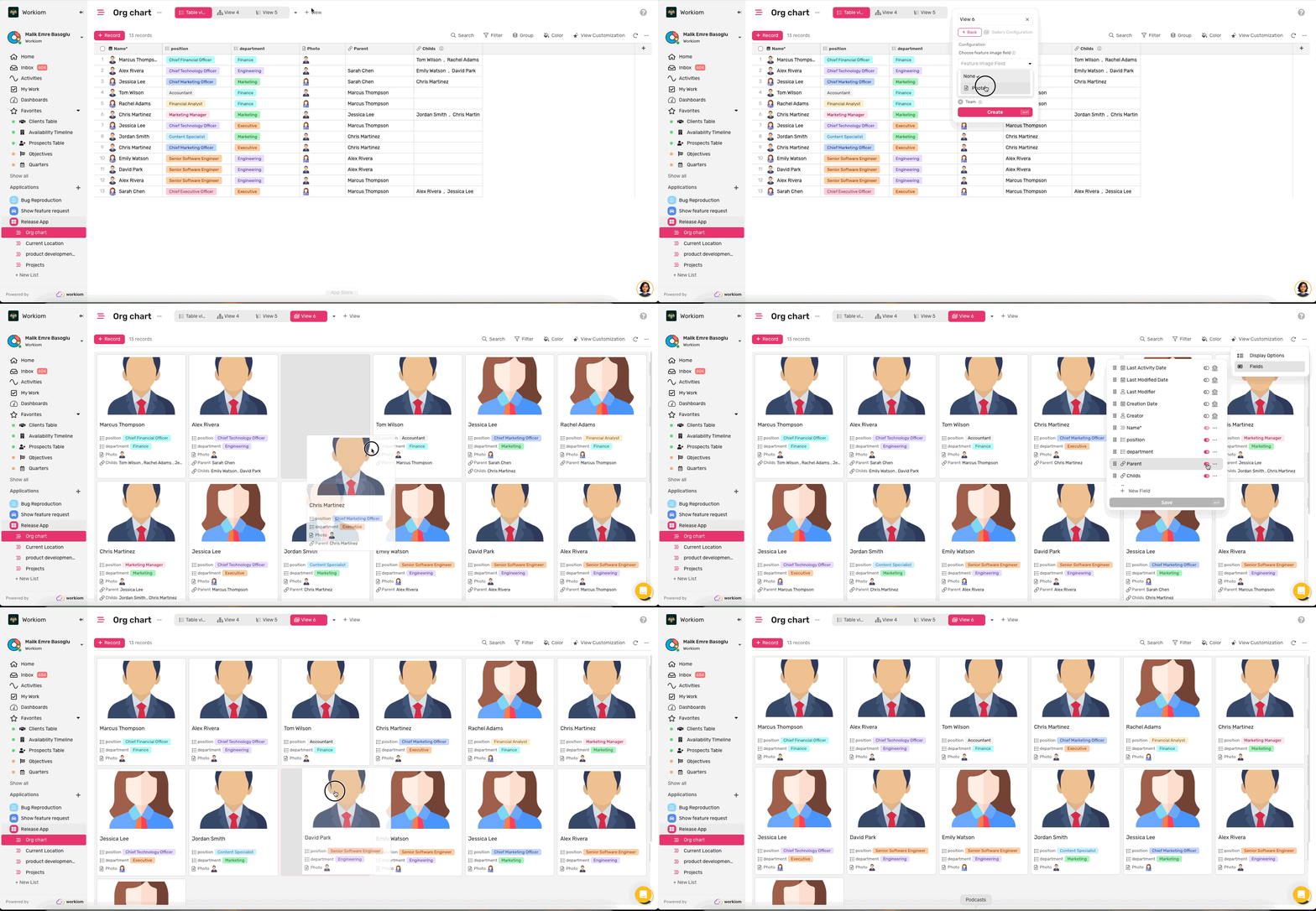
- Click Add View and select Gallery View
- Choose a Thumbnail Field (optional) - select any file-type field to display images at the top of each card
- Click Create View
If you select a thumbnail field with multiple files, only the first image will be displayed. For the best performance, keep images small (under 500KB).
Customize Your Cards
Control what information appears on each card:
- Click Gallery View Customization in the toolbar
- Go to Fields and select which fields you want to display
- Selected fields will appear stacked vertically in the bottom section of each card
- Adjust the card layout size to fit your needs
Work with Your Gallery View
Browse and Organize
- View Details: Click any card to open the record detail modal for editing
- Reorder Cards: Drag and drop cards to arrange them in your preferred order
- This is manual ordering (not based on field sorting)
- Your custom order is saved and persists when you return to the view
- Visual Scanning: Use image thumbnails to quickly identify and locate specific records
Customize Your View
Apply standard Workiom features to focus on what matters:
- Search: Find specific records quickly
- Filter: Show only records that meet certain criteria (by member, due date, or custom filters)
- Coloring: Apply conditional colors to cards based on field values to highlight important information
💡 Tip: Gallery View works great for visual catalogs. Add a thumbnail field to show product images or property photos, then customize which details appear on each card—like price, status, or location—for quick scanning and comparison.
Need help? Reach out to our support team or check out the full guide for using other views.