


Invitation Notifications
See who joined, your updated user count, and billing details when someone accepts an invitation to your workspace.


When someone accepts an invitation to your workspace, Workiom tells the right people who joined and how your user count changed. Owners and super admins also see the next bill amount and date when the new user takes the workspace over its plan's user limit.
Note: Notifications arrive both in Workiom and by email. What you see depends on your role.
How to Get Invitation Notifications
1. Invite Someone
Invite teammates from Manage Members as usual.

2. Get Notified When They Accept
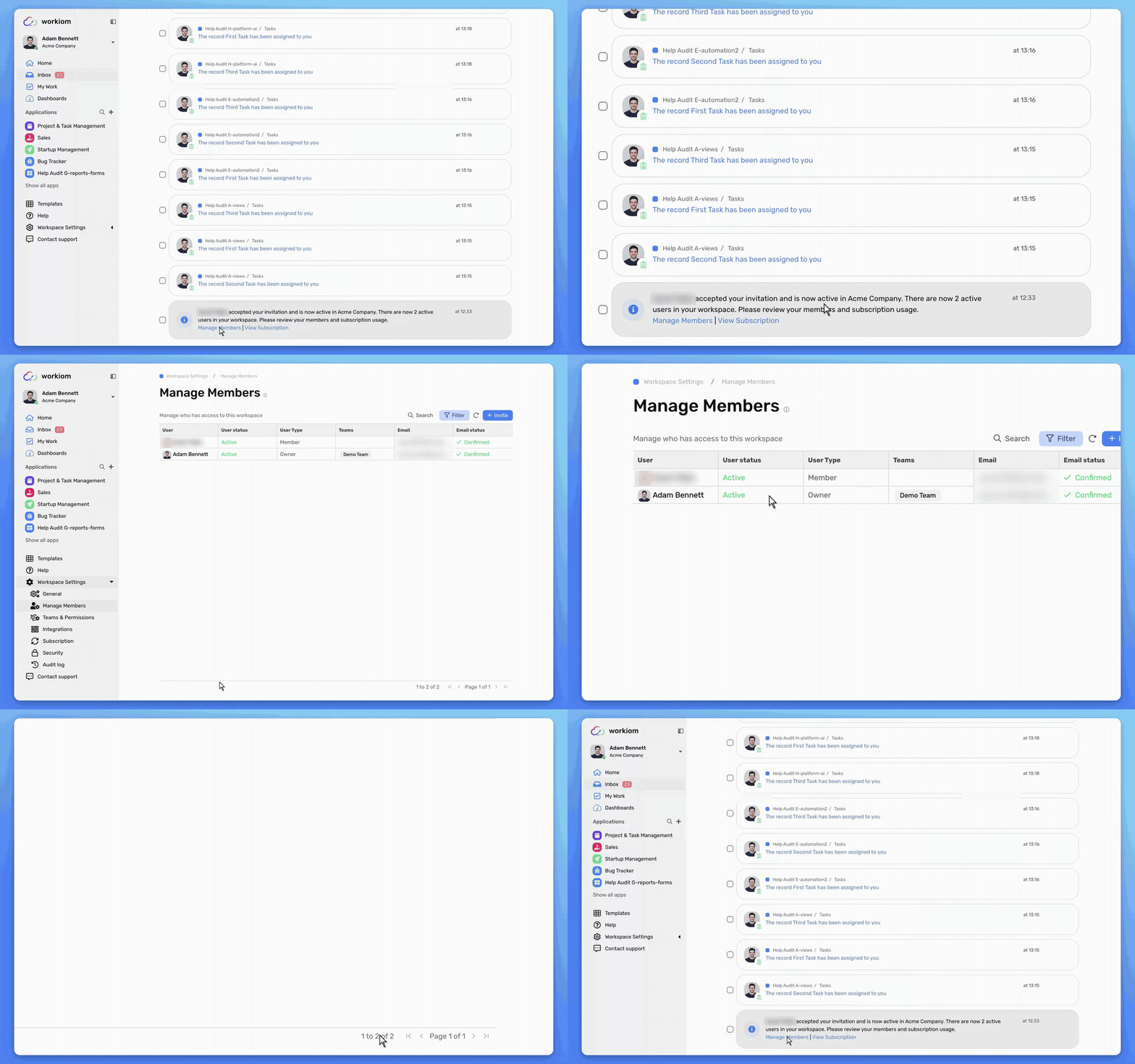
When the invitee accepts, you get an in-app notification and an email. The email subject starts with the new user's name.
3. Act From the Notification
Use the links in the notification, or in the email's What's next section:
- Manage Members: open members management to review seats and access
- View Subscription: check your subscription usage
What Each Role Sees
- Workspace owners and super admins: the new user's name and the updated total user count, for every acceptance in the workspace.
- Over the plan limit: when an acceptance takes the workspace over its plan's user limit, owners and super admins also see how many seats are over the limit, how many seats the plan includes, and the next bill amount and date.
- Within the plan limit: the notification confirms the acceptance without a billing amount.
- Members who can invite: the new user's name and the updated total user count, only for invitations they sent themselves, and never with billing details.
Things to Know
- Who can invite: workspace owners, and members whose team gives them the invite user permission.
- Each acceptance sends its own notification with the amount at that moment, so the figure you see reflects the latest seat count.
- A newly invited super admin doesn't get a notification about their own acceptance.
Use Case
- Business use case: The operations lead at Atlas Logistics invites three contractors. As each one accepts, the lead sees the updated user count and, once the plan limit is passed, the next bill amount and date, then uses Manage Members to review seats before the next charge.
- Simple use case: You invite a teammate, Dana, to a project. When they accept, you get a notification with their name and the new user count.
💡 Tip: Open View Subscription from the notification when you cross your plan's user limit, so you can check usage right away.
Need help? Reach out to our support team or check out the full guide for inviting and managing members.