


Iterator Action
Run actions once for each item in an array returned by a webhook or another action.


The Iterator action goes through a list of items returned by an earlier step and runs your actions once for each item. Use it to process bulk data — such as users, orders, or products returned by another system — in a single automation run, without setting up each item by hand.
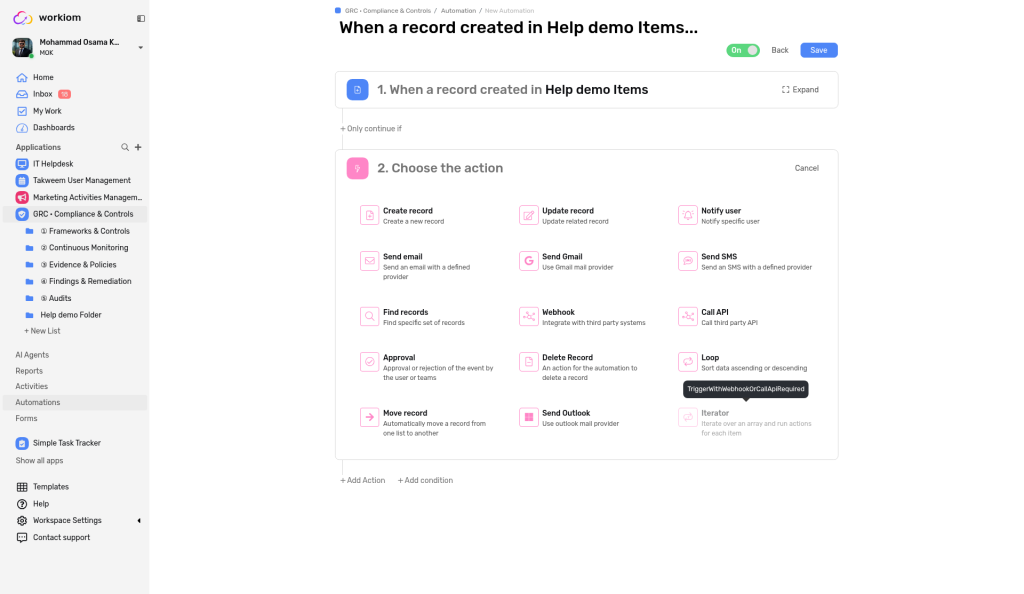
Note: The Iterator needs an array as its input, so it must come after a step that returns one — such as a Webhook trigger or a Call API action. It can't follow a trigger like When a record is created directly. Until an earlier step returns an array, Iterator is greyed out in the action list.
How to Set Up an Iterator
1. Get an array from an earlier step
Add a step that returns an array. For example, use Call API to request data from another system, and choose to continue on Success. Or start the automation with a Webhook trigger that receives a list.
2. Add the Iterator
Select + Add Action, then choose Iterator (Iterate over an array and run actions for each item). If Iterator is greyed out, point to it: the tooltip tells you to link it to a previous action that returns an array, such as a Webhook trigger or Call API.
3. Configure the Iterator
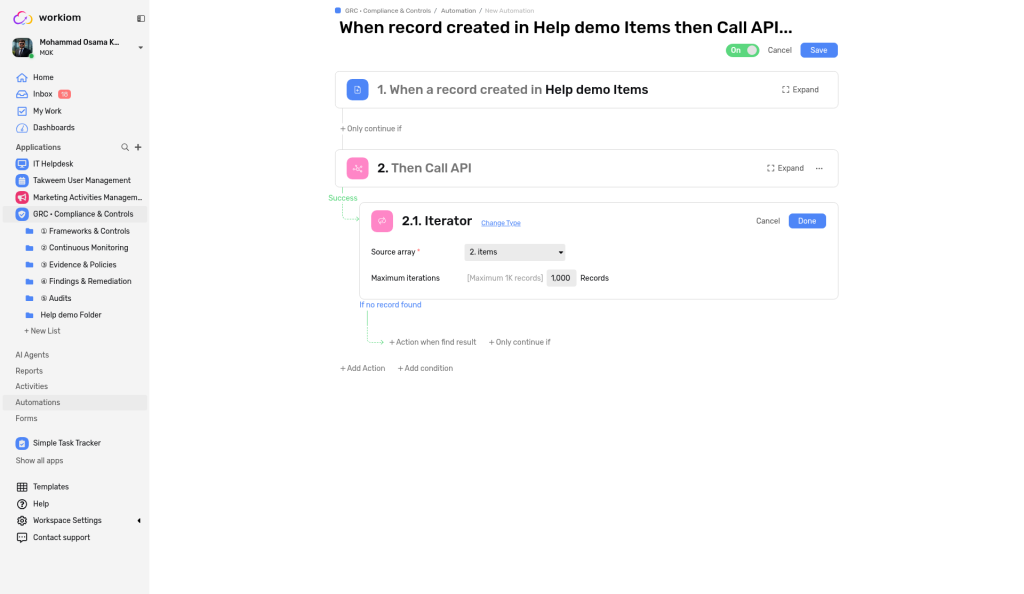
- Source array: choose the array to go through. The list shows the arrays returned by earlier steps — for example, 2. items, meaning the items array returned by step 2
- Maximum iterations: the most items to process in one run. The default is 1,000, and the limit is 1K records
Select Done to save the step. Use Change Type if you want to swap the Iterator for a different action.
4. Add actions for each item
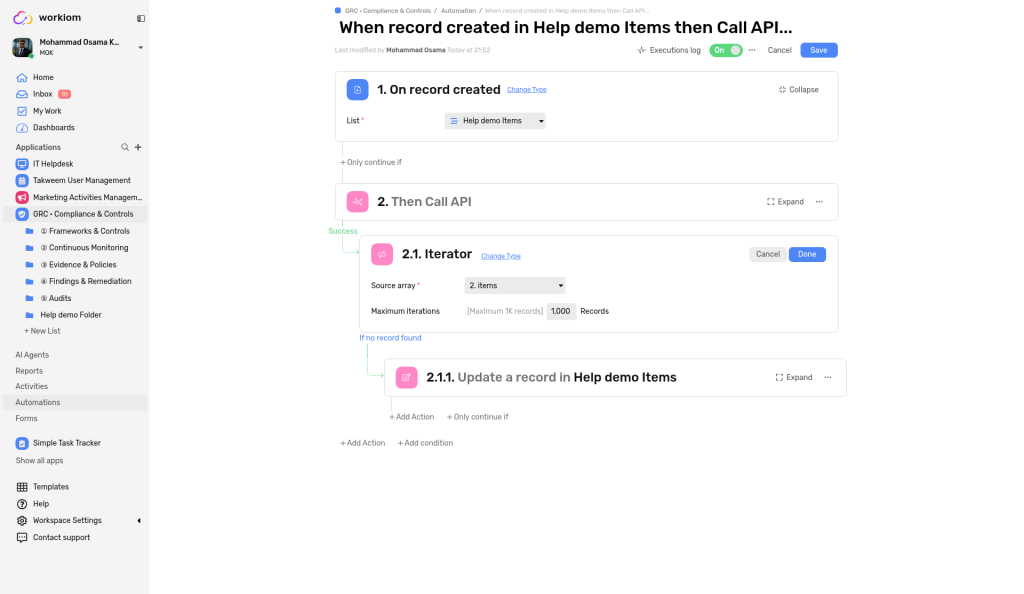
Under the Iterator, select + Add Action and choose the actions to run for each item. They appear indented under the Iterator — for example, 2.1.1 Update a record in your list. The Iterator also shows an If no record found path for when the array has no items, and you can add a condition with + Only continue if.
Check What Happened
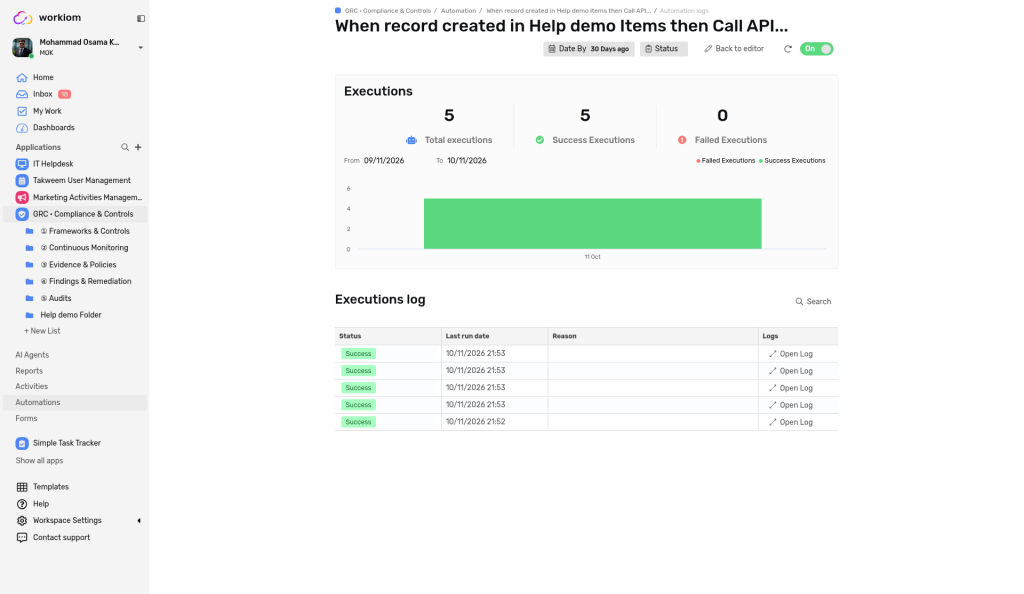
Open the automation's logs to see how your automation ran. The page shows Executions, Success Executions, and Failed Executions counts, a chart, and an Executions log table with:
- Status: whether the run succeeded or failed
- Last run date: when it ran
- Reason: why a run failed, if it did
- Logs: select Open Log to see the details
Open Log opens the Automation Log. Under Log Items, each item the Iterator processed appears as an Execute child action entry. Select an entry to see its Details on the right, and use Copy to copy them.

Use Cases
- Business use case: A Call API step fetches the latest orders from your store's system. The Iterator goes through the returned items, and an Update record action updates the matching record for each order.
- Simple use case: An automation calls a public API that returns a list, and the Iterator adds each result to your Tasks list.
💡 Tip: Start with a small Maximum iterations value while you test, so you can check the log before processing the whole array.
Need help? Reach out to our support team or check out the full guide for Webhook.