


Mila
Mila is Workiom's AI assistant for asking questions about your data, getting advice, and proposing record updates, deletions, and new records from chat.


Mila is the AI assistant built into Workiom. Ask questions about your data in plain language, get answers and advice right in the chat, and let Mila propose new records, updates, and deletions that you review and approve — without leaving the conversation.
Note: Mila is available when the AI assistant is part of your workspace plan. Admins decide which teams can use it (see Who Can Use Mila below). Mila works with records inside your existing lists; to build a new app, see Build an App with Workiom AI below.
Open Mila
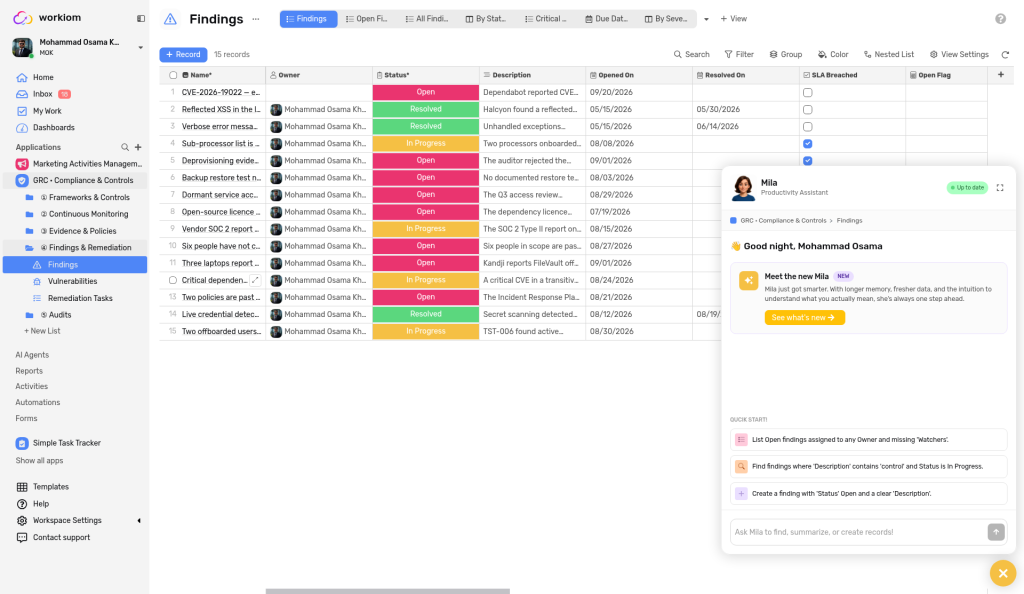
Open any list and select the Mila avatar at the bottom-right of the screen (it shows Mila / Productivity Assistant when you point to it) to start a conversation about that list. Mila uses the list you are in as context, so you can ask vague questions like "what's overdue?" without naming the list.
When the chat opens, you'll see:
- A greeting and a Quick Start area with suggestions based on your list, which you can click to send
- The app and list you are chatting about, with a Start over again link to clear the conversation
- A sync badge next to Mila's name (for example, Up to date)
- A message box that reads Ask Mila to find, summarize, or create records!
Ask Questions About Your Data
Type your question the way you'd ask a teammate. You don't need exact field names or status labels.
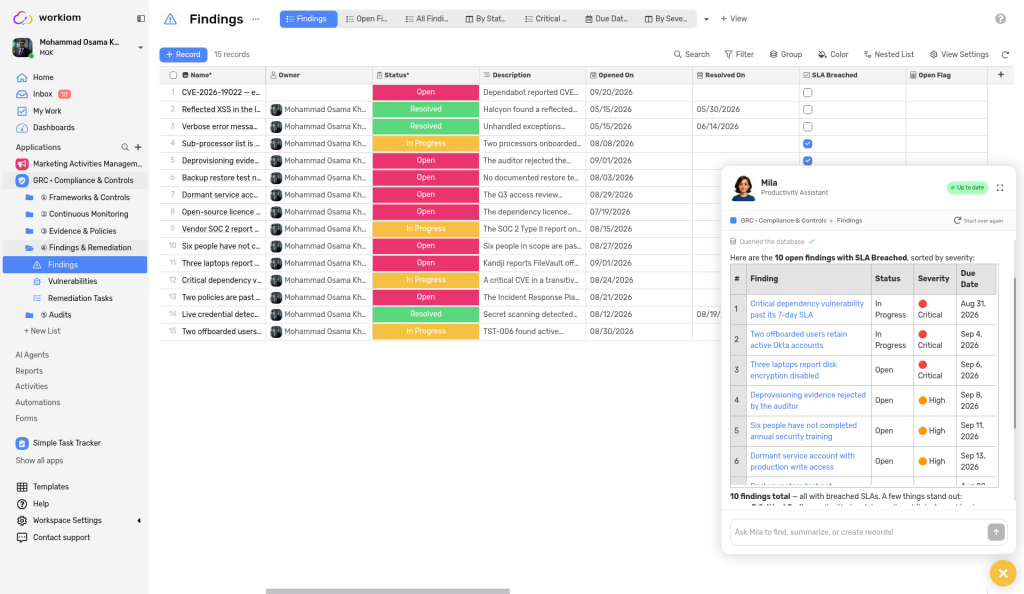
- Describe what you're looking for instead of naming it exactly, and Mila matches records that are relevant, not just ones with matching keywords
- Mila takes the list you're in into account, so short questions still get grounded answers
While Mila works, you'll see a short status such as Queried the database. The answer can include a table of matching records with links to each record, a summary, and a suggested follow-up. Use the copy icon under an answer to copy it.
Get Analysis and Advice
Mila can work with your records, not just find them. You can ask it to summarize information, compare data, or give advice on the records it returned.
Follow up on the results
The records Mila just returned stay in the conversation, so you can keep going without repeating yourself:
- Ask a data question — for example, "Bring me the biggest 3 deals."
- Ask a follow-up about those records — for example, "How can I close these deals successfully?", "What is the common pattern across these 3 deals?", or "Draft a follow-up email for the top deal."
Mila answers from the records it has plus general business knowledge, and tells you when an answer is general advice rather than something drawn from your workspace data. Mila only works with records you already have permission to see.

Create Records from Chat
Describe a record in plain language, including any details you want captured — for example, "add a complaint about late delivery from John". Mila answers with a card that shows the new record's name and any values you gave it, with a Create button. Mila adds that the record will be added to the list once you confirm, and nothing is created until you select Create.
- Ask Mila to create the record.
- Check the name and values on the proposed card.
- Select Create. The card then shows Record Created and an Open button.

Update Records from Chat
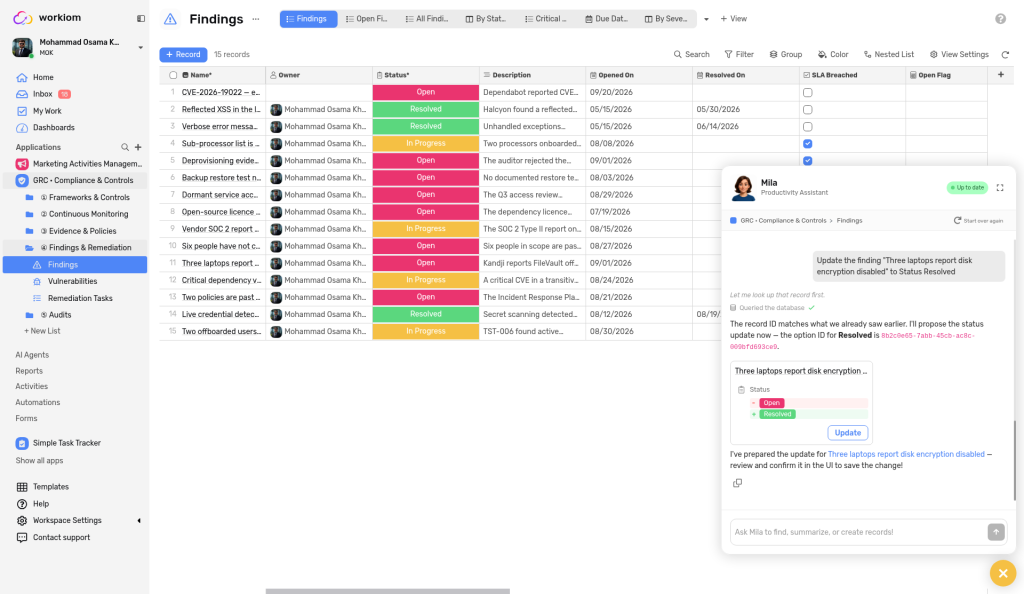
Ask Mila to change an existing record — for example, "mark the Acme proposal as Won". Mila shows what will change before you apply it.
- Ask Mila for the change.
- Review the proposal card. The current value appears on a red line with a minus (−), and the proposed value on a green line with a plus (+).
- Select Update to save the change. Nothing changes in your list until you do.
Delete Records from Chat
Ask Mila to delete a record — for example, "delete the duplicate entry for Acme". Mila looks the record up and answers with a card that identifies it, with a red Delete button. Mila asks you to confirm in the UI to remove the record permanently: nothing is deleted until you select the button.
- Ask Mila to delete the record.
- Check that the card shows the right record.
- Select the red Delete button.
You can only delete records that you have permission to delete in that list. Restoring a deletion is not available from the chat.

Keep Mila in Sync
Mila keeps its knowledge of your list up to date, so its answers reflect your current data.
- When the sync is current, the header badge shows Up to date. Later, the header can show Last synced with a time (for example, a minute ago) next to a Sync button.
- If new data is added to the list while Mila is open, select Sync to bring Mila up to date. After a sync, the button is not available again until a short interval has passed.
Use Mila on Mobile
Mila is also available in the Workiom mobile app. Open a list and start a chat in plain language to find records, summarize information, and create new records.
- A time-based greeting and quick-start suggestions you can tap to send
- Replies appear progressively, with a thinking indicator while Mila prepares an answer
- A proposed record appears as a card pre-filled with the suggested values, so you can review it before acting
- Stop Mila mid-answer, Start over to clear the conversation, and copy any reply
- Available in English, Arabic, and Turkish
Note: On mobile, if the AI assistant isn't included in your plan, Mila is hidden. If it's available only after an upgrade, you'll see an Upgrade to unlock AI Chat Assistant prompt instead of the chat.
Who Can Use Mila
Admins control which teams can use Mila.
- Open Workspace Settings and select Teams & Permissions.
- Choose the team and open its Permissions tab.
- Under General permissions, select or clear Use AI Mila, then select Save.
The same list also has Create App, Invite members, Create dashboard, and Create Interface.
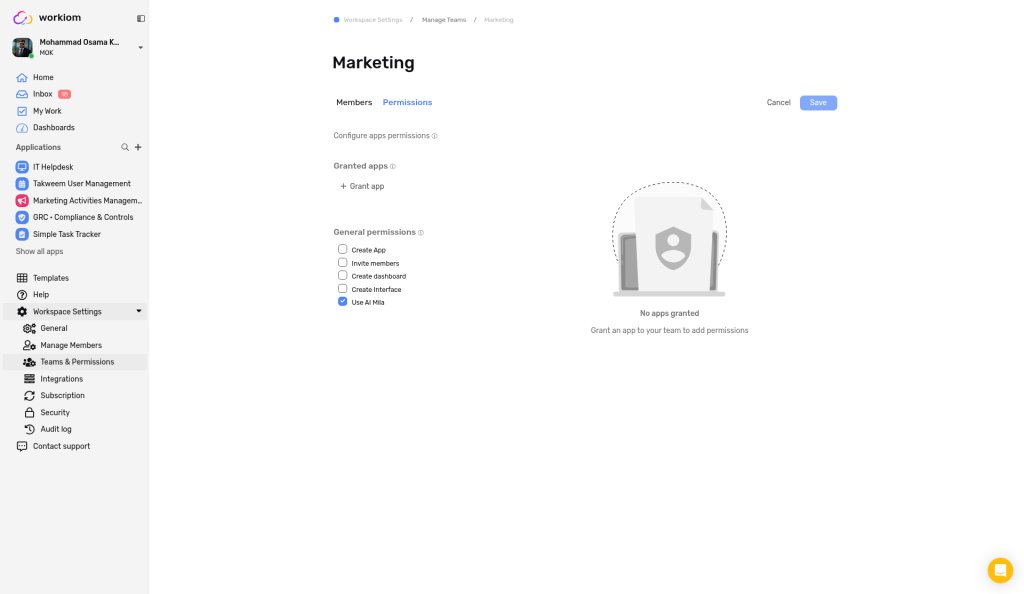
When Use AI Mila is off for a team, Mila isn't available to its members.
Build an App with Workiom AI
Mila can't create apps, lists, or fields from inside a list. If you ask, it explains that this is outside what it can do from there, lists what it can help with (adding records, filtering, summarizing, and searching), and points you to the workspace builder.

To create an app by chatting with AI instead:
- In the sidebar, select + next to Applications.
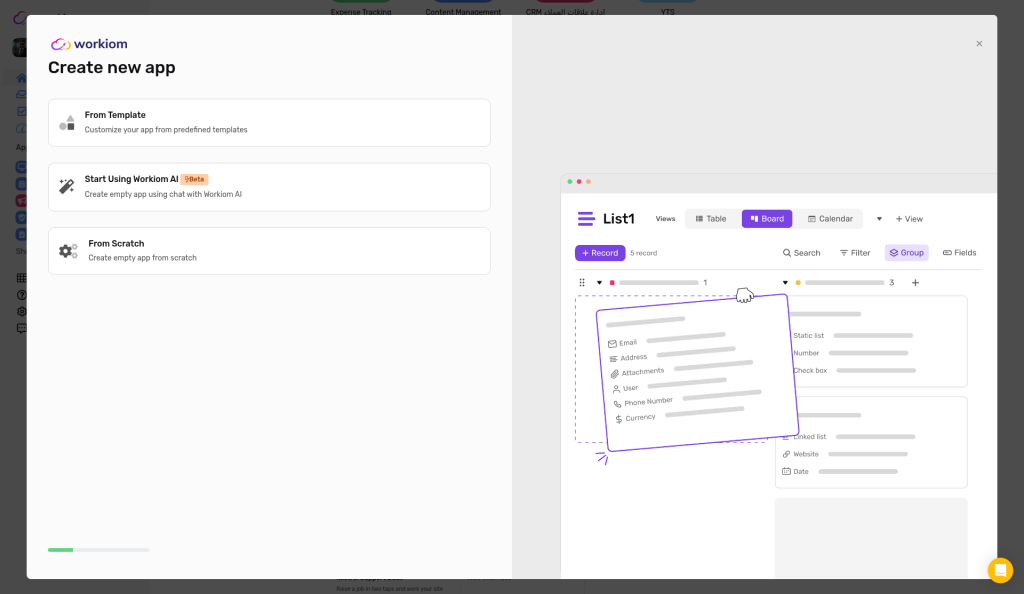
- Select New App. The Create new app window opens.
- Select Start Using Workiom AI — Create empty app using chat with Workiom AI.
The window also offers From Template and From Scratch. See App Generator for the full walkthrough.
Good to Know
- Mila answers using your Workiom data and only works with records you already have permission to see.
- Mila doesn't answer unrelated questions or unsupported requests.
Use Cases
- Business use case: A sales manager opens the Deals list, asks Mila for the three biggest open deals, then asks "how can I close these deals successfully?" and "draft a follow-up email for the top deal" — all in one conversation.
- Simple use case: In a personal Tasks list, you ask "what's overdue?", then ask Mila to mark one task as done. You review the red and green change on the card and select Update.
💡 Tip: Start with a question, then ask Mila to act on the answer. Because the records stay in the conversation, you can refer to "these deals" without restating anything.
Need help? Reach out to our support team or check out the full guide for App Generator.