


App Folders
Group related lists into folders inside an app to keep large apps organized.


Folders let you group related lists inside an app, so large apps stay tidy and you reach the right list faster. A folder is purely organizational — it doesn't affect automations, reports, or anything else in your app.
Note: Folders are one level deep — you can't put a folder inside another folder. To create, rename, or delete folders, you need the same permission that lets you create lists. Folder creation is in the app's ⋯ menu, not in + New List.
Create a Folder
1. Open the app menu
Point to the app in the sidebar and select its ⋯ menu. The panel also holds other app settings.
2. Select New Folder
Select New Folder. A new folder appears at the end of the app in the sidebar, with its name field ready to type in.
3. Name it
Type a name, then press Enter or click anywhere outside the field to save. Press Esc to cancel without creating the folder.
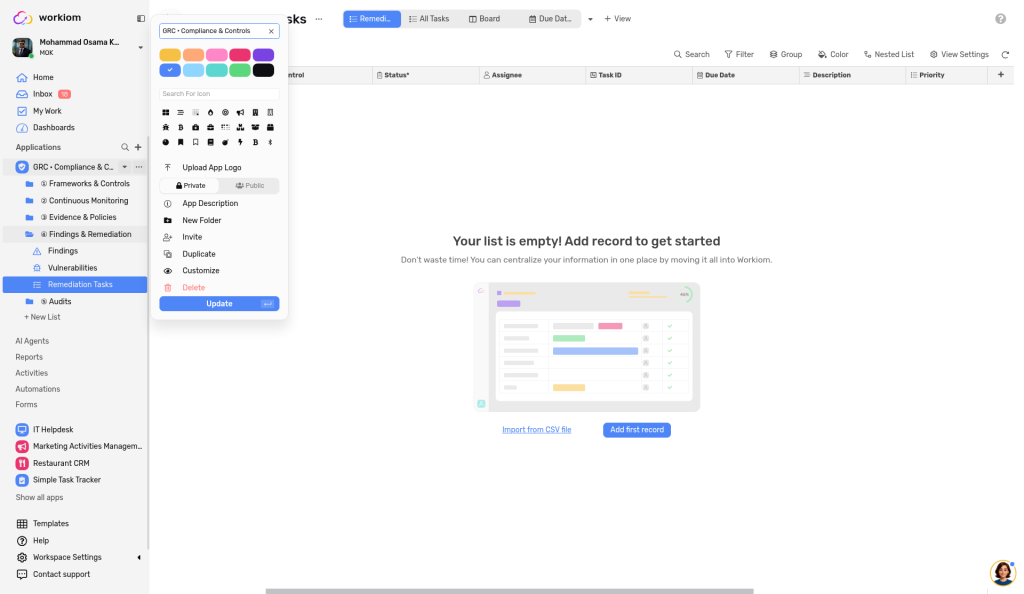
The folder now appears in the sidebar. New folders start collapsed. You can create an empty folder and add lists to it later.
Add Lists to a Folder
You organize lists by dragging them in the sidebar:
- Drag in: drag a list from the app into a folder.
- Drag out: drag a list from a folder back to the app.
- Auto-open: if you drag a list over a collapsed folder, the folder opens automatically.
- Preview: you see a preview of where the list will land before you let go.
- Reorder: drag lists up and down inside a folder to change their order.

Folders sit among your lists in the sidebar. Drag a folder to place it anywhere you like — at the top, at the bottom, or between lists.
What folders don't do:
- You can move only one list at a time; dragging several lists at once isn't supported.
- Folders can't be nested.
- Folders don't have their own permissions; a folder's visibility depends on the lists inside it.
Open and Navigate Folders
You can open folders and find lists in the sidebar in these ways:
- Expand or collapse: select a folder to open it and see the lists inside. Folders are collapsed when you load the page.
- Open a list: when you open a list that is inside a folder — from the sidebar or from a link — its folder expands.
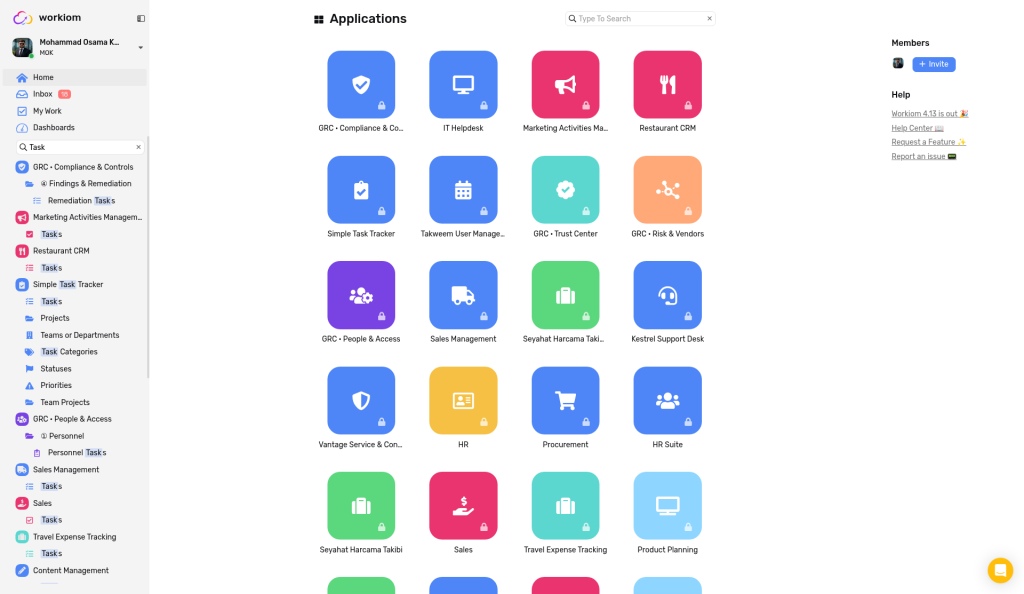
- Search: the magnifier next to Applications opens a search box. Type a name to filter apps, folders, and lists across all your apps, with matches highlighted.

Search Apps and Lists
Find any app or list by name without scrolling the sidebar.
How to Search
- Select the magnifier next to Applications in the sidebar.
- Start typing in the Type To Search box. Apps, folders, and lists filter as you type, and the matching text is highlighted.
- Select the app or list you want.
- To close search, empty the box and press Esc, or click outside it.
Things to Know
- Case doesn't matter: upper or lower case gives the same results.
- Match an app, see its lists: when your search matches an app name, every list in that app appears, even if the list names don't match.
- Only what you can access: results include only the apps and lists you have access to.
Example: Type ord and the sidebar shows lists such as Purchase Orders and Sales Orders with ord highlighted. Type Procurement to see every list in that app.
💡 Tip: Type the app name when you want to see every list in that app at once.
Rename or Delete a Folder
Point to the folder in the sidebar and open its settings menu (it appears when you point to the folder). Use it to rename or delete the folder. If you delete a folder, its lists move back to the app. No list or data is deleted.
Things to Know
- Members see a folder only if they have access to at least one list inside it, and they see only the lists they have access to.
- An empty folder stays in the sidebar for people who can manage folders.
Use Cases
- Business use case: A compliance team groups its lists into folders named ① Frameworks & Controls, ② Continuous Monitoring, and ③ Evidence & Policies, so each part of the process has its own set of lists.
- Simple use case: In a personal Projects app, you group all your finished lists into an Archive folder, so the sidebar shows only active lists.
💡 Tip: Drag folders into the order of your process, and add a number or symbol such as ① to the name to make that order obvious.
Need help? Reach out to our support team, or check out the full guide for apps and lists.