


Invitation Email Domain Restriction
Restrict workspace invitations to approved email domains, ensuring only users from authorized organizations can join.

Transcript

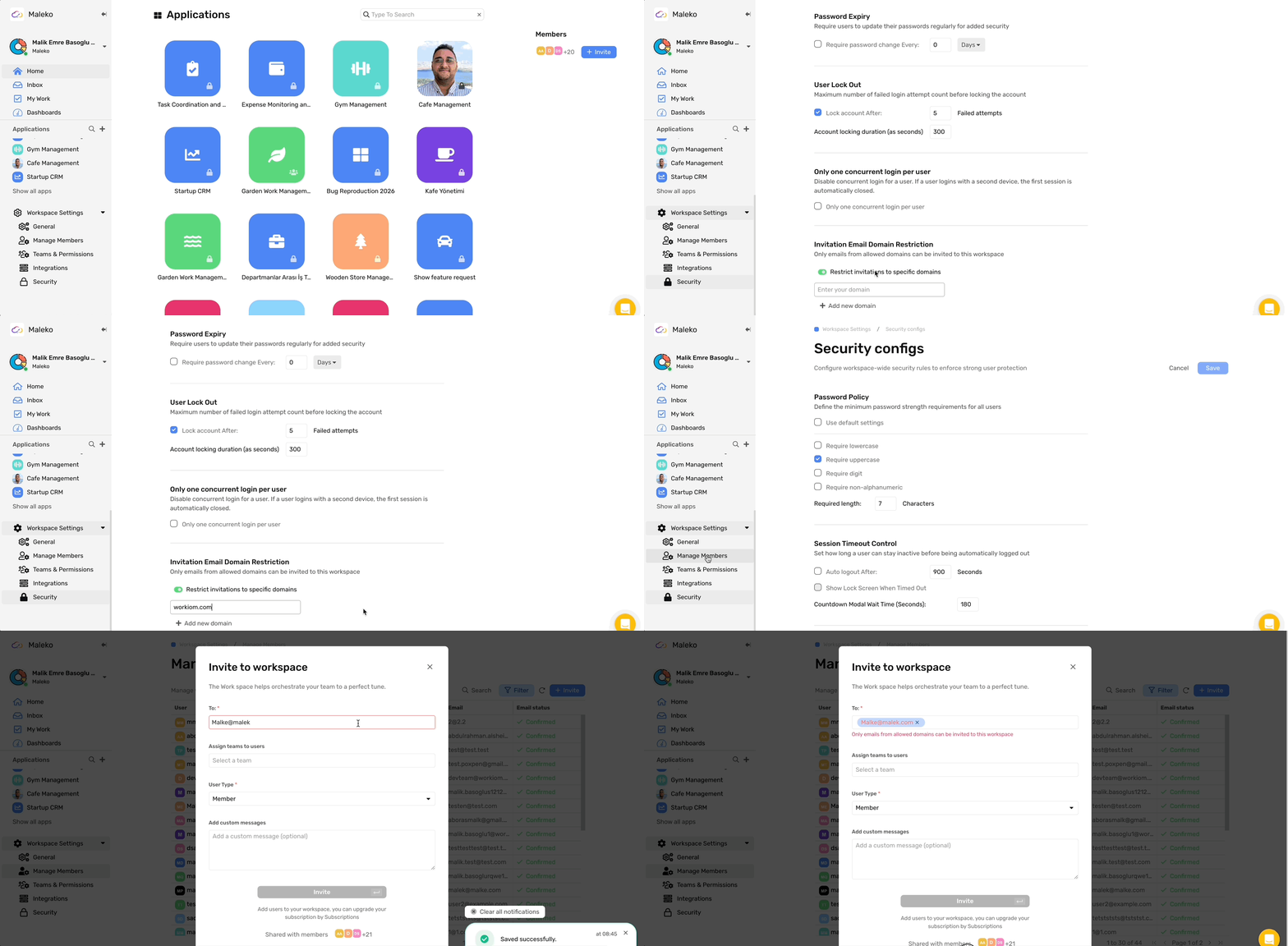
Invitation Email Domain Restriction lets workspace admins control which email domains are allowed to join their workspace. Once enabled, invitations to addresses outside the allowed domains are blocked at the point of sending — and existing invitations are also blocked at the point of acceptance if the restriction is added later.
Requirements
- This feature must first be unlocked for your workspace by your host admin
- Once unlocked, workspace admins can enable and configure it from Security Settings
- Available on the Enterprise plan
How to Enable and Configure
- Go to Workspace Settings
- Open the General tab
- Find Invitation Email Domain Restriction and toggle it on
- Add the email domains your organization wants to allow (e.g., company.com, subsidiary.org)
- Save your settings — the restriction is now active
How It Works
- Sending invitations — if the invitee's email domain is not on the allowed list, the invitation is blocked and no email is sent. The admin sees a clear error message.
- Accepting invitations — if a user tries to accept an existing invitation but their domain is no longer allowed, they are blocked from joining with a clear error.
- Empty allowed domains list — if the restriction is enabled but no domains are added, all invitations are blocked.
Notes
- Domain comparison is case-insensitive — Company.com and company.com are treated the same
- Disabling the restriction fully restores normal invitation behavior with no side effects
- Subdomain or wildcard matching (e.g., *.company.com) is not supported in this version