


Number and Fraction Separator
Choose how numbers are displayed across your workspace using your preferred thousands and decimal separators.


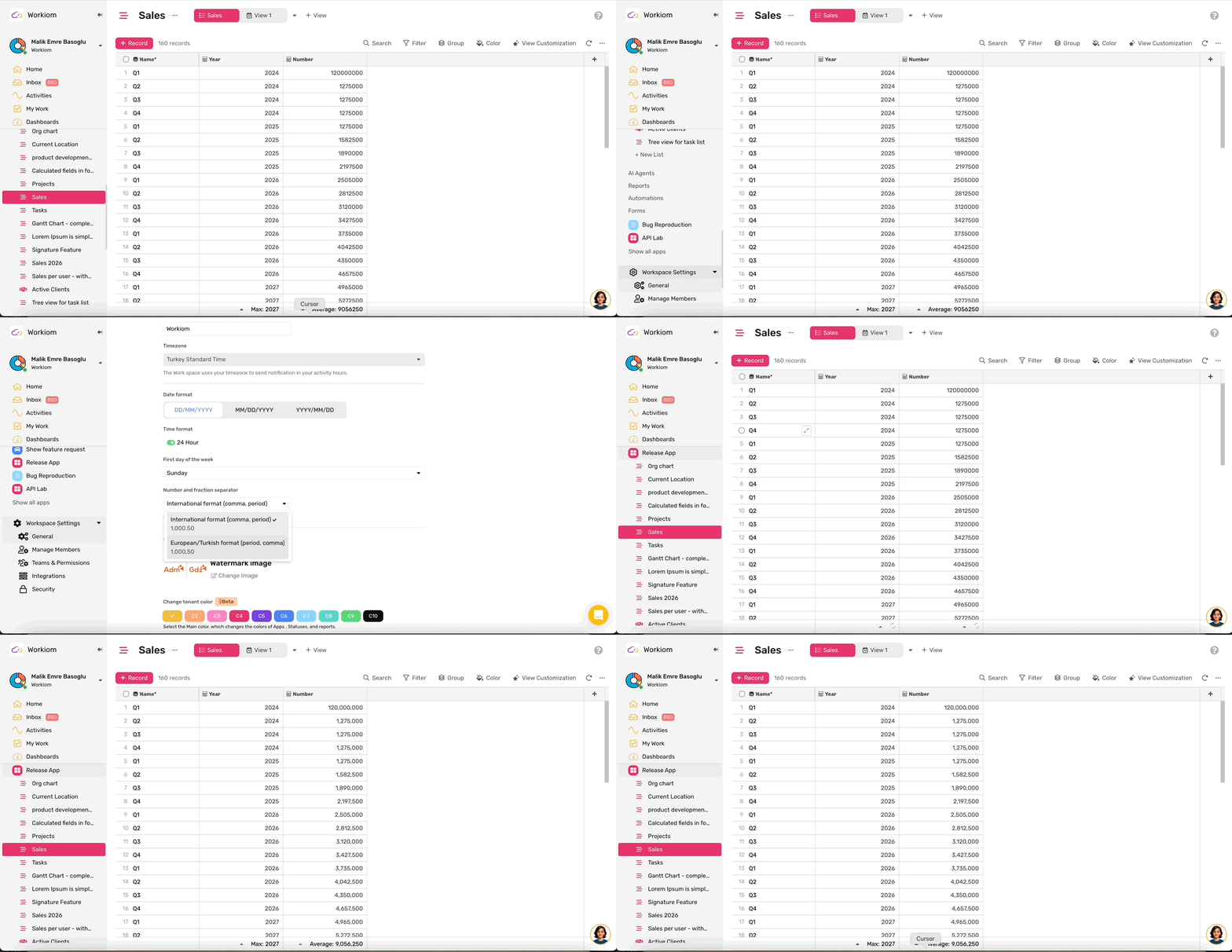
The Number and Fraction Separator setting lets workspace owners and super admins choose how numbers are displayed across the entire workspace. Once set, every user in the workspace sees numbers in the chosen format — in views, reports, dashboards, forms, and exports.
Available Formats
You can choose between two formats:
- International Format — comma for thousands, dot for decimals (e.g., 1,000.50)
- European / Turkish Format — dot for thousands, comma for decimals (e.g., 1.000,50)
How to Change the Format
- Go to Workspace Settings
- Open the General tab
- Find the Number and Fraction Separator option
- Select your preferred format from the dropdown
- The change applies immediately to all users in the workspace
Where the Format Applies
- All views — Table, Board, Calendar, Gallery, Document
- Reports and dashboards
- Forms
- Exported files — CSV, Excel, and PDF
Supported Field Types
The formatting applies to all numeric field types:
- Number, Count, Auto Number
- Currency
- Field Lookup, Rollup, VLookup (numeric output)
- Formula and AI fields (numeric or currency output)
Apply or Exclude Formatting Per Field
The workspace format applies to all supported fields by default. However, any users with field edit permission can turn it off for a specific field directly from the field settings.
- Open the field settings for any numeric field
- Find the Enable Number and Fraction Separator toggle
- Turn it off to display that field's numbers without the workspace separator format
This is useful when a specific field needs to stay in a neutral or raw format regardless of the workspace setting.
Notes
- Only workspace owners and super admins can change the workspace-level setting
- Any users with field edit permission can toggle the separator on or off per field from field settings
- Numbers below 1,000 are not affected by this setting